
How to Schedule a Livestream, Trigger Google’s Red LIVE Badge, and Dominate the SERPs
A technical and strategic blueprint for podcasters and creators: how to build a persistent /live destination, configure BroadcastEvent structured data, and use Google Search Console and the Indexing API to capture real-time search preference.
Share the goodness!
A technical and strategic blueprint for podcasters and creators: how to build a persistent /live destination, configure BroadcastEvent structured data, and use Google Search Console and the Indexing API to capture real-time search preference.
In 2026, standard organic search results are under unprecedented pressure. Between AI Overviews, sponsored carousels, and zero-click answers, the traditional 10 blue links are pushed further down the results page every month.
Yet Google has one visual treatment that stops searchers dead in their tracks: the glowing red 🔴 LIVE badge.
When a livestream is active, Google doesn’t treat it like an ordinary piece of content. Google treats it as immediate, temporal intent. It hoists the video to the top of standard search results, embeds it directly into Video Carousels, and stamps it with an animated red “LIVE” pill badge that commands a 3x to 5x click-through rate (CTR) advantage over static organic snippets.
Most creators assume this visibility is reserved for massive media networks like ESPN or YouTube celebrities. It isn’t. Google’s live search algorithm is completely accessible to independent podcasters, creators, and brands—if you understand how to structure your site, markup your code, and ping Google’s indexing infrastructure at the right moment.
Here is the complete, step-by-step technical guide to setting up your persistent /live hub, configuring Google-compliant schema, and securing real-time SERP preference for your next broadcast.
Visualizing the Advantage: Static Result vs. Google LIVE Badge
Before looking under the hood, look at what the searcher actually sees:
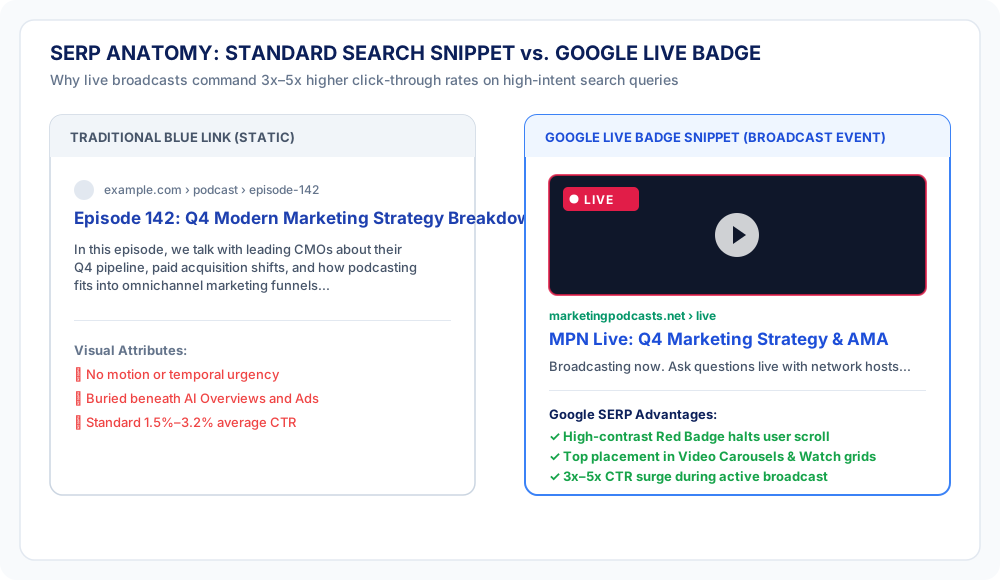
A standard blog post or podcast episode link has no motion, no temporal urgency, and blends into the surrounding text. The Google LIVE snippet features:
- A high-contrast red LIVE badge that stands out against white and dark mode SERPs.
- High-resolution video thumbnail previews.
- Real-time priority placement in Google’s “Top Stories”, “Watch”, or Video carousels.
- Direct click-through to your own domain rather than a third-party social platform.
Why You Need a Persistent /live URL (The Fatal Flaw of Ephemeral Links)
The single biggest mistake podcasters make with live video is creating a new, temporary URL for every single broadcast—such as yourshow.com/live-stream-october-17 or yourshow.com/episode-105-live.
Here is why that strategy fails in organic search:
- Zero Domain Equity: A new URL has zero page authority, zero inbound links, and zero historical crawl trust from Googlebot.
- The Crawl Lag: It can take Googlebot hours—or even days—to discover, render, and index an entirely new URL. By the time Google indexes
yourshow.com/live-stream-october-17, your broadcast ended yesterday. - Link Dilution: Every time you promote a new link on social media or in your newsletter, you scatter your backlink equity across dozens of dead pages.
The Solution: The Persistent /live Architecture
Instead of ephemeral links, build a permanent destination: yourdomain.com/live (or marketingpodcasts.net/live).
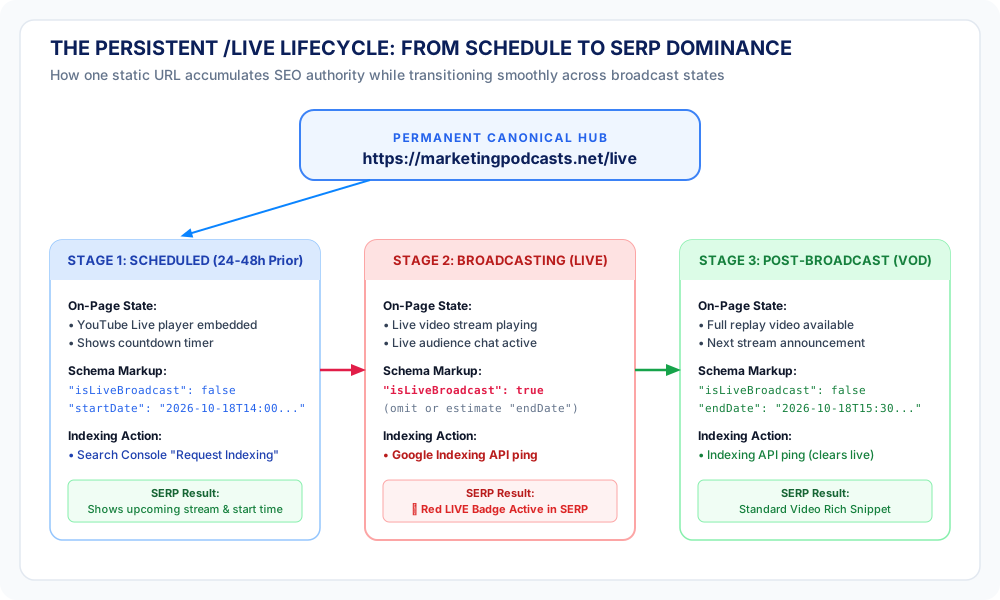
By maintaining a single, persistent /live URL:
- Accumulated PageRank: Every backlink, social share, and bookmark strengthens the exact same page over months and years.
- High Crawl Frequency: Googlebot learns that
yourdomain.com/liveupdates frequently and revisits it rapidly. - Seamless State Transitions: The same page cleanly transitions across three distinct lifecycle stages:
- 48 Hours Before: Displays the scheduled broadcast title, countdown, and upcoming schema.
- During the Stream: Embeds the live player and fires the active
isLiveBroadcast: trueschema. - After the Stream: Houses the on-demand replay (VOD), summary notes, and an invitation to subscribe for the next stream.
The Technical Requirements: What Google Demands
Google Search Central has strict, non-negotiable guidelines for pages seeking the LIVE badge. If any of these four requirements are missing, Google will simply ignore your livestream signals:
1. A Playable Video Player Embedded Above the Fold
The /live page must host a watchable video element. You cannot simply post a text announcement saying “we are live on YouTube.”
- Supported embeds: YouTube Live embed (
iframe), Vimeo Live, Twitch, or native HTML5 video players streaming HLS (.m3u8) or DASH. - Placement: The video player must be prominent, visible without requiring user interaction (like clicking a hidden modal), and discoverable by Googlebot.
2. Structured Data Hierarchy: VideoObject with Nested BroadcastEvent
Google requires Schema.org structured data in JSON-LD format. Crucially, BroadcastEvent must be nested inside the publication property of a parent VideoObject.
3. Three Thumbnail Aspect Ratios (16:9, 4:3, and 1:1)
Google renders video snippets across a variety of screen sizes and SERP features (mobile cards, desktop wide carousels, Google Discover squares). You must provide thumbnailUrl as an array with three distinct aspect ratios:
16x9: e.g., 1920×1080 (standard landscape player)4x3: e.g., 1440×1080 (tablet and legacy video cards)1x1: e.g., 1080×1080 (square card in mobile feeds)
4. ISO 8601 Timestamps with Timezone Offsets
Dates cannot be arbitrary strings like “Saturday at 2pm”. They must be fully qualified ISO 8601 strings including the explicit UTC offset:
- Correct:
2026-10-18T14:00:00-04:00(EDT) or2026-10-18T18:00:00Z - Incorrect:
2026-10-18 14:00(Googlebot cannot reliably deduce your broadcast timezone)
The Complete JSON-LD Schema Blueprint
Place this schema script directly inside the <head> or at the bottom of the <body> on your https://yourdomain.com/live page:
<script type="application/ld+json">
{
  "@context": "https://schema.org",
  "@type": "VideoObject",
  "name": "MPN Live: Modern Podcasting & Search Strategy in the Age of AI",
  "description": "Join the Marketing Podcast Network live as we break down real-time creator search signals, entity SEO, and answer audience questions.",
  "thumbnailUrl": [
    "https://marketingpodcasts.net/assets/live/thumbnail-16x9.jpg",
    "https://marketingpodcasts.net/assets/live/thumbnail-4x3.jpg",
    "https://marketingpodcasts.net/assets/live/thumbnail-1x1.jpg"
  ],
  "uploadDate": "2026-10-17T06:00:00-04:00",
  "embedUrl": "https://www.youtube.com/embed/LIVE_STREAM_ID",
  "contentUrl": "https://marketingpodcasts.net/live",
  "publication": {
    "@type": "BroadcastEvent",
    "isLiveBroadcast": true,
    "startDate": "2026-10-18T14:00:00-04:00",
    "endDate": "2026-10-18T15:30:00-04:00"
  }
}
</script>
The 3-Phase Execution Lifecycle
Phase 1: Scheduled (24 to 48 Hours Before)
- Schedule your stream in YouTube Studio / StreamYard / Restream: Obtain your permanent video ID or embed code.
- Embed on
/live: Place the upcoming stream embed on your/livepage. Visitors will see the thumbnail and a live countdown timer. - Set Pre-Broadcast Schema:
- Set
"isLiveBroadcast": false(or omit the property). - Set
"startDate"to your future scheduled broadcast time. - Set
"endDate"to your projected finish time.
- Set
- Trigger Initial Indexing: Request indexing via Google Search Console so Google registers the scheduled event.
Phase 2: Broadcasting Live (The “Go Live” Moment)
- Switch Schema to Live: Update
"isLiveBroadcast": true. Ensure the embed player is actively streaming audio/video. - Notify Google Immediately: Send an instant notification via the Google Indexing API or Search Console URL Inspection.
- SERP Result: Googlebot recrawls within minutes and turns on the red 🔴 LIVE badge in search results.
Phase 3: Post-Broadcast (VOD & Archival)
Warning: Do NOT skip this step! Leaving "isLiveBroadcast": true after your stream has concluded is considered deceptive structured data by Google. If searchers click a “LIVE” result only to find a static video replay, Google’s automated spam filters will revoke your site’s rich snippet eligibility.
- Update Schema to Archived: Change
"isLiveBroadcast": falseand update"endDate"with the exact time the broadcast finished. - Leave Replay on
/live: Keep the recording available for on-demand viewers until your next show is scheduled. - Ping Google: Request a final recrawl so the red badge clears cleanly and transforms into a standard video rich snippet.
How to Request Indexing: Two Proven Pathways
Method A: Google Search Console (Quick & No Code)
If you stream once a week or once a month, you can trigger Googlebot manually through Google Search Console:
- Open Google Search Console.
- Paste your persistent URL (
https://yourdomain.com/live) into the top URL Inspection search bar. - Click “Test Live URL” (takes ~30 seconds). Check the “Rich Results” tab to confirm Google detects
VideoObjectandBroadcastEventwithout warnings or syntax errors. - Click “Request Indexing”.
Googlebot typically hits your page within 5 to 30 minutes, refreshing your cache and recognizing the scheduled or active status.
Method B: The Google Indexing API (Real-Time Automation)
Here is one of the most powerful, under-utilized secrets in SEO:
Google’s official documentation states that the Google Indexing API cannot be used for ordinary blog posts or product pages. In fact, Google’s documentation explicitly restricts the Indexing API to only two content categories:
“The Indexing API can only be used to crawl pages that include either
JobPostingorBroadcastEventembedded in aVideoObject.”
That’s right: Livestreaming with BroadcastEvent is the exact, officially sanctioned use-case for Google’s real-time API.
Using the Indexing API, you can trigger Googlebot to recrawl your /live page within 2 to 5 minutes of hitting “Broadcast” in your studio.
Setting Up the Indexing API:
- Google Cloud Console: Create a new project and enable the Web Search Indexing API.
- Service Account: Create a service account (e.g.,
livestream-bot@your-project.iam.gserviceaccount.com) and generate a JSON private key. - Search Console Permission: In Google Search Console, go to Settings > Users and permissions and add the service account email as an Owner.
- Send the Notification: When you go live, send an HTTP POST request:
POST https://indexing.googleapis.com/v3/urlNotifications:publish
Authorization: Bearer <OAUTH2_ACCESS_TOKEN>
Content-Type: application/json

{
  "url": "https://marketingpodcasts.net/live",
  "type": "URL_UPDATED"
}
Four Common Pitfalls That Kill Your LIVE Badge
- Missing 1:1 and 4:3 Thumbnails: Only providing a 16:9 YouTube thumbnail. Google will often reject the rich snippet on mobile cards if alternative aspect ratios are omitted.
- Timezone Offset Bugs: Using UTC strings without the
Zor local time without the offset (e.g.14:00:00instead of14:00:00-04:00). If Googlebot misinterprets your broadcast as starting 5 hours earlier or later, your badge won’t appear when you’re actually live. - The “Ghost Stream” Penalty: Forgetting to change
"isLiveBroadcast": falseafter ending the stream. If users repeatedly bounce from a finished stream with a live badge, Google will blacklist your domain from future live SERP features. - Blocking Googlebot with JavaScript Modals: Requiring users to log in or click an age-gate popup before the video element renders in the DOM. Ensure Googlebot can render the player on first pass.
Summary Checklist for MPN Shows
| Milestone | Action Item | Verification |
|---|---|---|
| Setup | Create persistent yourdomain.com/live hub | URL resolves with fast TTFB and responsive layout |
| Embed | Place video player above the fold | Test iframe/player renders on desktop and mobile |
| Schema | Add VideoObject + BroadcastEvent JSON-LD | Verify in Google’s Rich Results Test |
| T-24h | Schedule stream & set startDate | Request Indexing via Search Console |
| Live! | Toggle "isLiveBroadcast": true | Push URL_UPDATED via Indexing API |
| Post-Show | Toggle "isLiveBroadcast": false & set endDate | Request Indexing to clear badge cleanly |
Podcasting is an attention game. While every other show is fighting for scraps in standard search results, a properly indexed live broadcast gives you an unfair visual advantage right when listener intent is highest. Set up your /live hub once, wire your schema, and own the top of the SERP every time you hit record.